
Essential for Backtesting
When backtesting historical charts, TradingView displays today's date—not the date of the candles you're viewing. The DateTime indicator shows the actual chart date so TradeJour can extract accurate timestamps for your backtested trades.
DateTime Indicator for Backtesting
The DateTime indicator displays the current candle's date and time on your TradingView chart. When you're backtesting trades from weeks, months, or years ago, this indicator tells TradeJour what date the chart is showing—essential for accurate historical records.
Why is entry time important?
Entry time is crucial for your trading journal because it allows you to:
- Analyze session performance: Compare your results across London, New York, or Asia sessions
- Track timing patterns: Discover if you perform better at certain times of day
- Review market conditions: Correlate trades with specific market events or news
- Build accurate records: Essential for performance analysis and strategy refinement
Without the DateTime indicator, you would need to manually type the entry date and time for every trade—which adds up when you're journaling 20+ trades from a backtesting session.
Example: DateTime Indicator on Your Chart
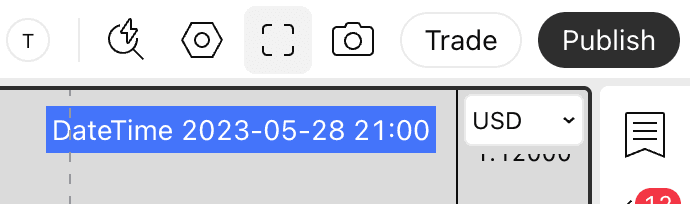
DateTime indicator positioned at the top of the chart, clearly visible for automatic extraction
Benefits of Using the DateTime Indicator
✓ With DateTime Indicator
- • TradeJour.nl extracts time automatically
- • 100% accurate to the candle
- • Saves 10-15 seconds per trade
- • Consistent format across all trades
- • No typing errors
✗ Without DateTime Indicator
- • Manual entry required every time
- • Easy to mistype or forget
- • Wastes time during verification
- • Inconsistent date formats
- • Slows down journaling workflow
How to Add the DateTime Indicator in TradingView
Use the TradeJour.nl DateTime Indicator (Recommended)
We've created a purpose-built indicator optimised for TradeJour.nl data extraction. It displays the most recent candle's date and time in a clear, consistent format.
Step 1: Save the Indicator to Favorites
Open the indicator page on TradingView and click the ★ Add to favorites button.
Open "Current Candle DateTime" IndicatorOr search in TradingView: Click Indicators → search for Current Candle DateTime
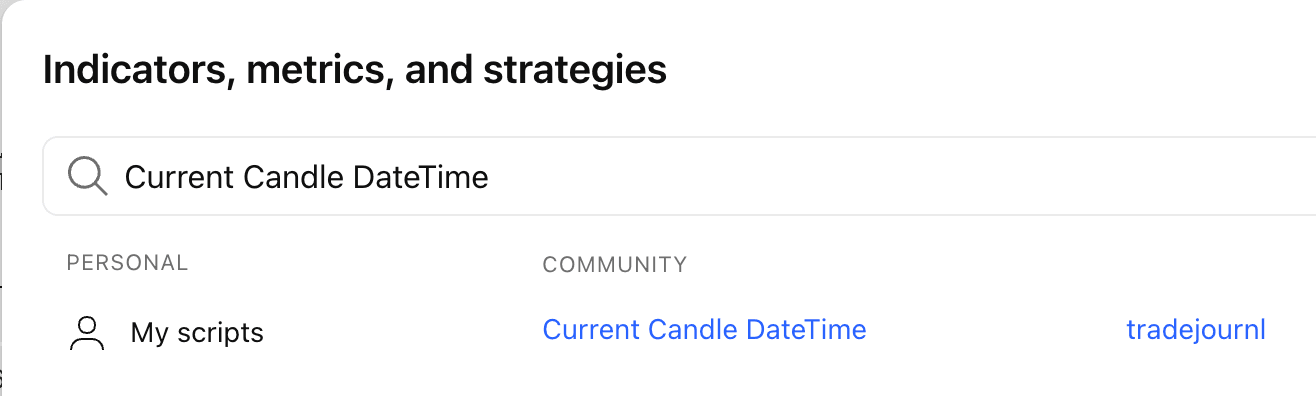
Step 2: Add the Indicator to Your Chart
- Open your TradingView chart
- Click "Indicators" at the top (or press "/" on your keyboard)
- Go to the "Favorites" tab in the indicator search
- Click "Current Candle DateTime" to add it to your chart
That's it! The indicator is now saved to your favorites and will be available on all your TradingView charts with one click.
Troubleshooting: What If Entry Time Isn't Detected?
If the DateTime indicator isn't detected or the extraction fails, don't worry,the trade will still be processed. Here's what happens:
Extraction Process
- TradeJour.nl scans your screenshot for datetime patterns
- If found: Entry time is automatically filled in during verification
- If not found: You'll see a notification during verification: "Entry time not detected"
- You can manually enter the date and time
- Trade saves normally either way
Quick Start Checklist
Ready to set up automatic entry time extraction? Follow this checklist:
- ☐ Add a DateTime indicator to your TradingView chart
- ☐ Position it in the top-left or top-right corner
- ☐ Increase font size to 14-16pt for better OCR
- ☐ Ensure good contrast (white text on dark background)
- ☐ Take a test screenshot
- ☐ Upload to TradeJour to verify extraction works
- ☐ Apply the same setup to all your trading charts
Next Steps
Now that you have automatic entry time extraction set up, enhance your journaling workflow even further:
- Set up the PnL Position tool for automatic trade data extraction (entry, SL, TP)
- Add text annotations to capture your analysis and trade notes
- Learn uploading best practices for multi-timeframe trades
- Troubleshooting guide if you encounter any issues
Last updated: January 2026